How to use Warden
From installing to a phone that rings when you're attacked. Every page of the app is explained below with a screenshot. Inside Warden, the ? button at the top-right of each page shows the same tips.
Install
Download
Get Warden-Setup.exe (Windows 10 & 11, 64-bit).
Run the installer
No admin rights needed. If Windows says "Windows protected your PC", click More info → Run anyway. This shows for new apps that aren't yet widely downloaded.
Open Warden
Your 7-day free trial starts now. No card, no sign-up. The badge at the bottom-left shows TRIAL · 7d left.
Connect to the game
Warden needs to be logged in to your Imperia Online account. The easiest way is to share the session your browser already has, using its cookie.
The cookie way (recommended)
Your browser keeps your game session in a cookie called PHPSESSID. When you give it to Warden, the app and the browser share one session, so you can keep playing in the browser while Warden works.
Open the game in your browser
Go to imperiaonline.org in Chrome or Edge, log in, and enter the world you want Warden to play.
Open the developer tools
Press F12 (or Ctrl+Shift+I). A panel opens at the side or the bottom of the page.
Find the cookie
Click the Application tab. It may be hidden behind ». On the left, open Cookies and click the imperiaonline.org entry. In the list, find the row named PHPSESSID.
ElementsConsoleSourcesNetworkApplication»Storage▸ Local storage▸ Session storage▾ Cookieshttps://www.imperiaonline.orgName Value Domain _ga GA1.2.1234567890… .imperiaonline.org PHPSESSID 1a2b3c4d5e6f7a8b9c0d1e2f3a4b5c6d www.imperiaonline.org lang en www.imperiaonline.org Illustration. Your value is different and looks like a long string of letters and numbers.
Copy its value
Double-click the Value of the PHPSESSID row and press Ctrl+C.
Paste it into Warden
In Warden, click Cookie in the world box at the top of the sidebar (or account menu → Use browser cookie…). Paste with Ctrl+V and press Connect.
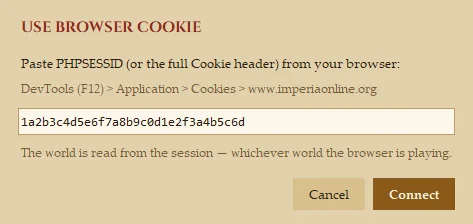
Done
The world box shows your world with a green ● online. Warden reads the world from the session, so it plays whichever world the browser was in. Next time you open Warden it reconnects with the same cookie by itself.
Firefox: press F12 → Storage tab → Cookies → imperiaonline.org → PHPSESSID.
When it expires: if you log out in the browser, or the game ends the session, Warden says "The last cookie has expired". Repeat steps 1–5 with the new cookie.
The password way
Account menu (bottom-left) → Log in…. Pick your world, enter your username and password, and Warden logs in by itself. Your password is kept encrypted in Windows Credential Manager. It never leaves your PC. A password login starts a new session, so a browser playing the same world gets logged out.
Find your way around
- World box
- Top-left: the world you're playing, its name, and online / offline. The Cookie button connects with a browser cookie.
- Sidebar
- The eight pages. A green dot means something is switched on there. The Auto Attack item shows the time to the next round, and Attacks shows how many attacks on you are incoming.
- Account menu
- Your name at the bottom-left: log in / out, Switch world…, Use browser cookie…, change or forget the saved login, Language, and Show the help on every page.
- Licence badge
- Under the account menu: TRIAL · days left or PRO. Click it to subscribe, enter a key or manage your subscription. See Licence.
- Status bar
- The line at the bottom of the window tells you what Warden just did, in green (done), orange (warning) or red (error).
- ? button
- Top-right of every page: shows or hides the How this page works note.

Dashboard
The main switches of Warden in one place, so you can see at a glance what's running.
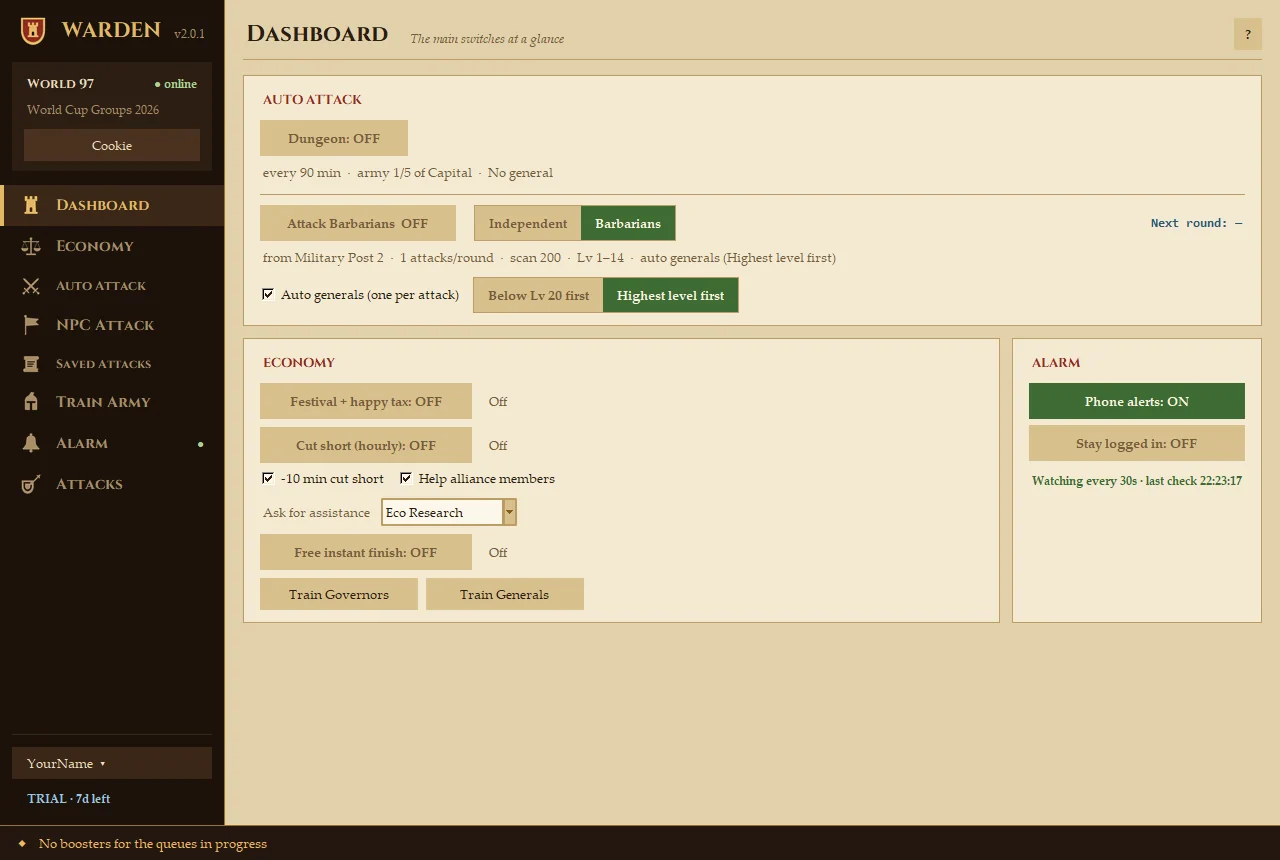
- Auto Attack
- Dungeon and the NPC raid switch (Independent or Barbarians), with Next round countdown and the auto-generals order.
- Economy
- Festival + happy tax, Cut short (hourly) with its options, Free instant finish, and one-press Train Governors / Train Generals.
- Alarm
- Phone alerts and Stay logged in, plus when Warden last checked for attacks.
- The grey line
- Under each switch: a summary of its settings, such as every 90 min · army 1/5 of Capital · No general. Change them on that switch's own page.
Each switch is the same one as on its own page: turning it on here or there is the same thing.

Economy
Everything that grows your realm: festivals and taxes, cut-short and alliance help, governors and generals, boosters, the shop and special resources.
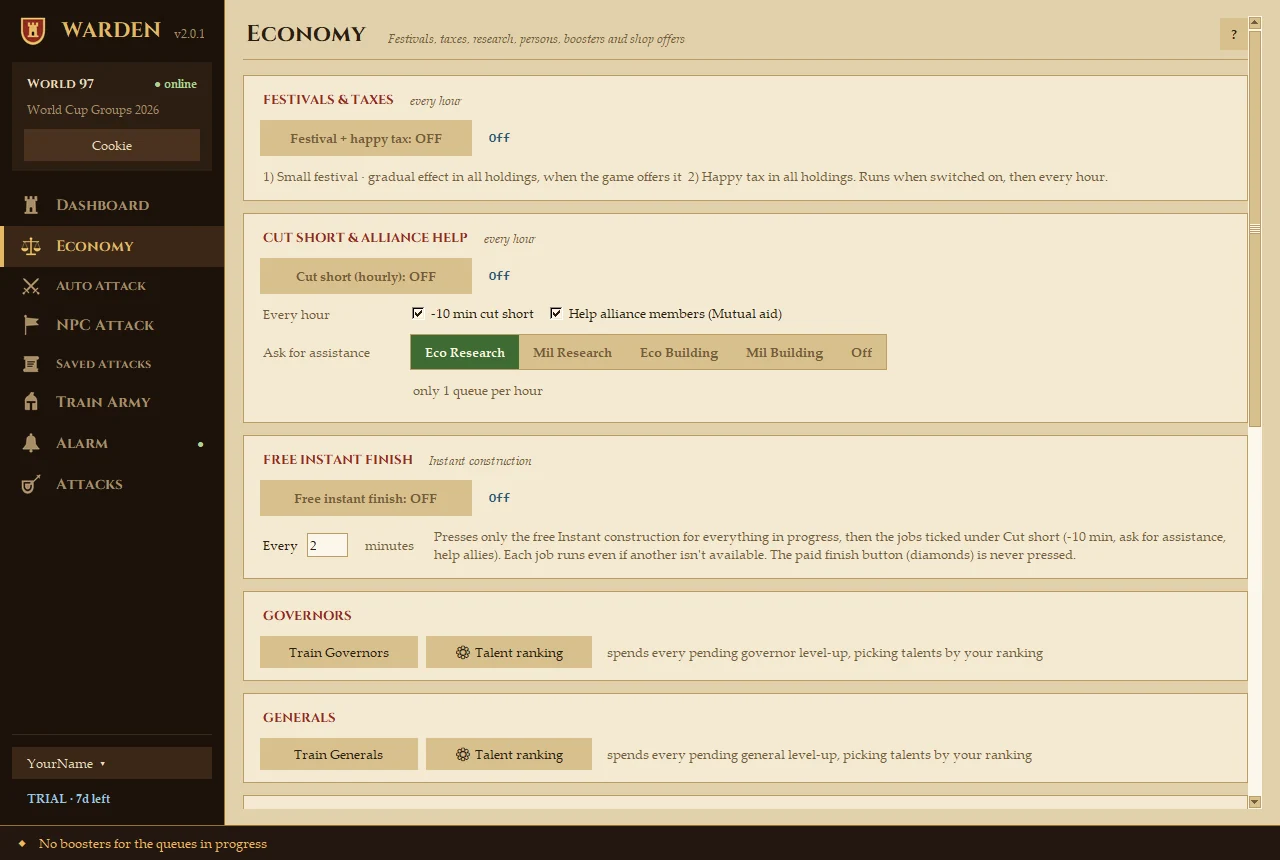
- Festival + happy tax
- When on: holds a small festival (gradual effect) in all holdings when the game offers it, and sets the happy tax in all holdings. Runs when you switch it on, then every hour.
- Cut short (hourly)
- When on, every hour: uses the free −10 min, asks your alliance for assistance in the queue you pick (Eco Research, Mil Research, Eco Building, Mil Building or Off), and helps every ally who's asking (Mutual aid). Tick which of these it does.
- Free instant finish
- When on: presses the free Instant construction for everything in progress every few minutes (you set how many), then runs the jobs ticked under Cut short. The paid finish button (diamonds) is never pressed.
- Train Governors / Generals
- Spends every pending level-up. Talent ranking opens your order of talents. The top 5 are your priority talents, and Warden picks by that list.
- Boosters
- Fetch lists the time items you own. Use ticked / Use all spends them on the queues in progress. Items only, never diamonds.
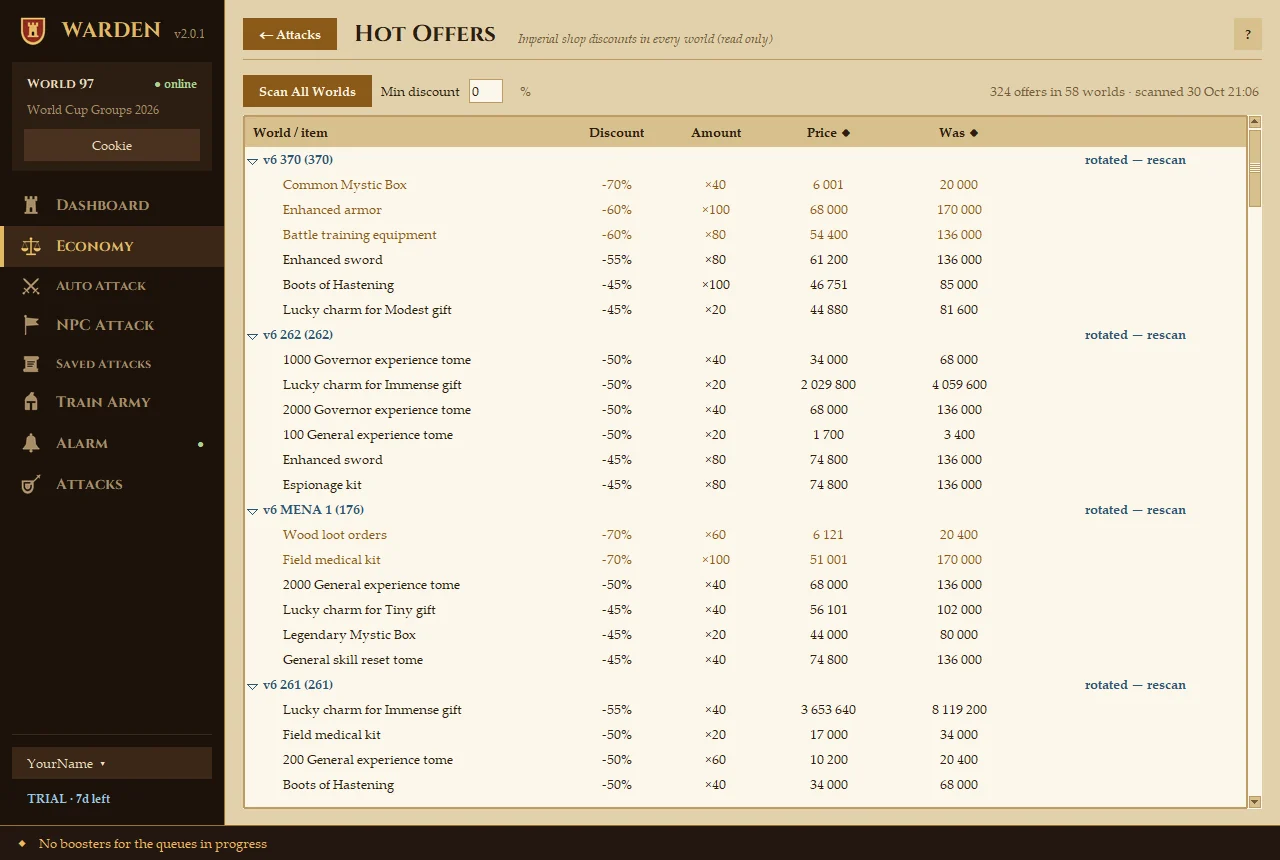
- Imperial shop
- Hot Offers → shows the shop discounts of every world side by side. Nothing is bought. Scan All Worlds logs into each world in turn with your password, which logs your browser out. Warden reconnects to your world at the end.
- Gem train
- Quick 1-hour trainings, each started and finished at once with diamonds. It's the one part of Economy that spends diamonds, and its card says so.
- Special resources
- Scan the map for special resources around you and see who holds them, with bonus, owner, alliance and distance.

Auto Attack
Attacks that repeat by themselves while Warden is open.
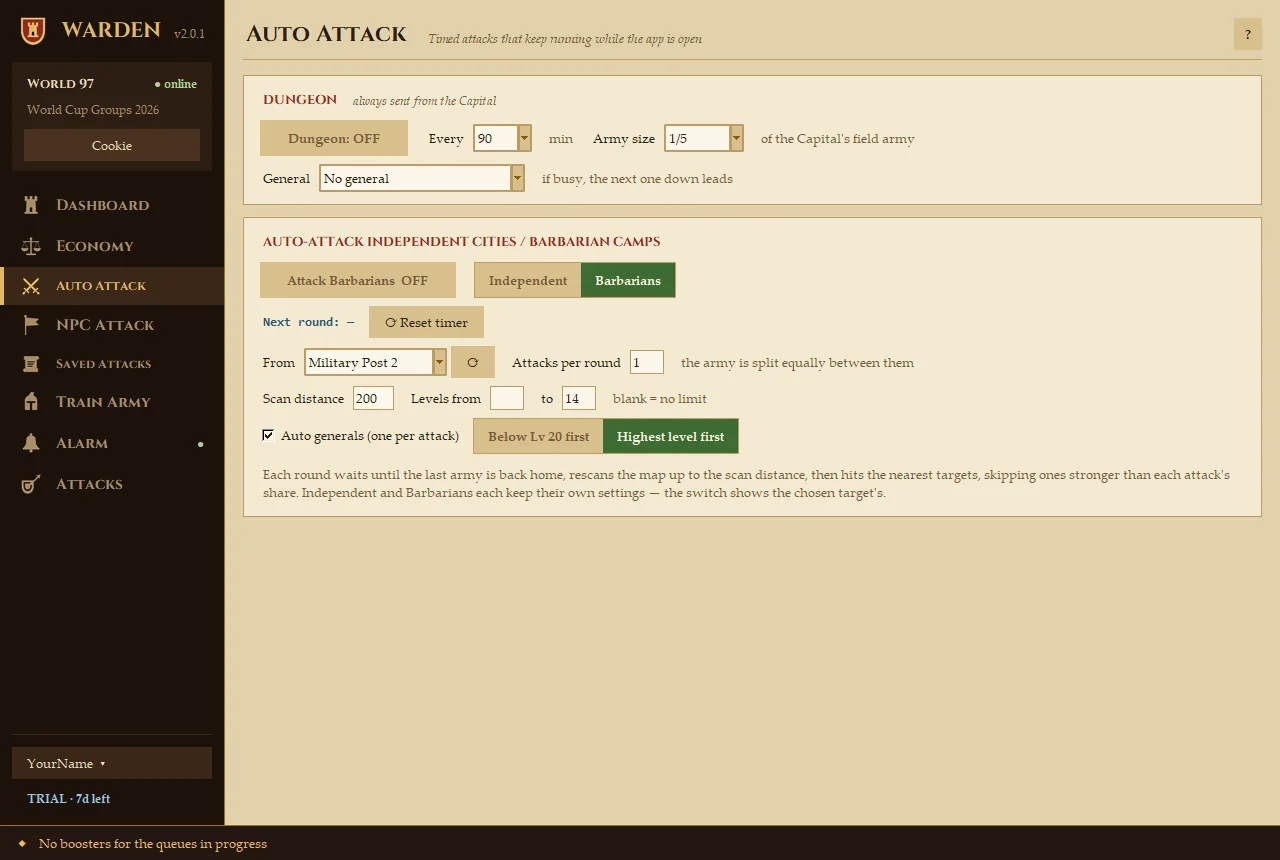
Dungeon
- Dungeon: ON / OFF
- Sends part of the Capital's field army into the dungeon, then again every Every minutes. It's always sent from the Capital.
- Army size
- The share of the Capital's field army to send, for example 1/5.
- General
- Who leads it. If that general is busy, the next one down leads.
Independent cities / barbarian camps
- Attack … ON / OFF
- Starts the rounds. Each round waits until the last army is back home, rescans the map up to the scan distance, then hits the nearest targets, skipping ones stronger than each attack's share.
- Independent / Barbarians
- Which kind of target. Each keeps its own settings, and the switch shows the chosen one's.
- Next round · Reset timer
- Countdown to the next round. Reset starts it from now.
- From
- The holding the army leaves from. ⟳ reloads the list.
- Attacks per round
- The army is split equally between this many targets.
- Scan distance · Levels
- How far to look, and the level range to attack. Leave a level box blank for no limit.
- Auto generals
- Puts a general at the head of each attack: Below Lv 20 first (to level them up) or Highest level first.

NPC Attack
Find NPC targets on the map and attack or spy on them yourself.
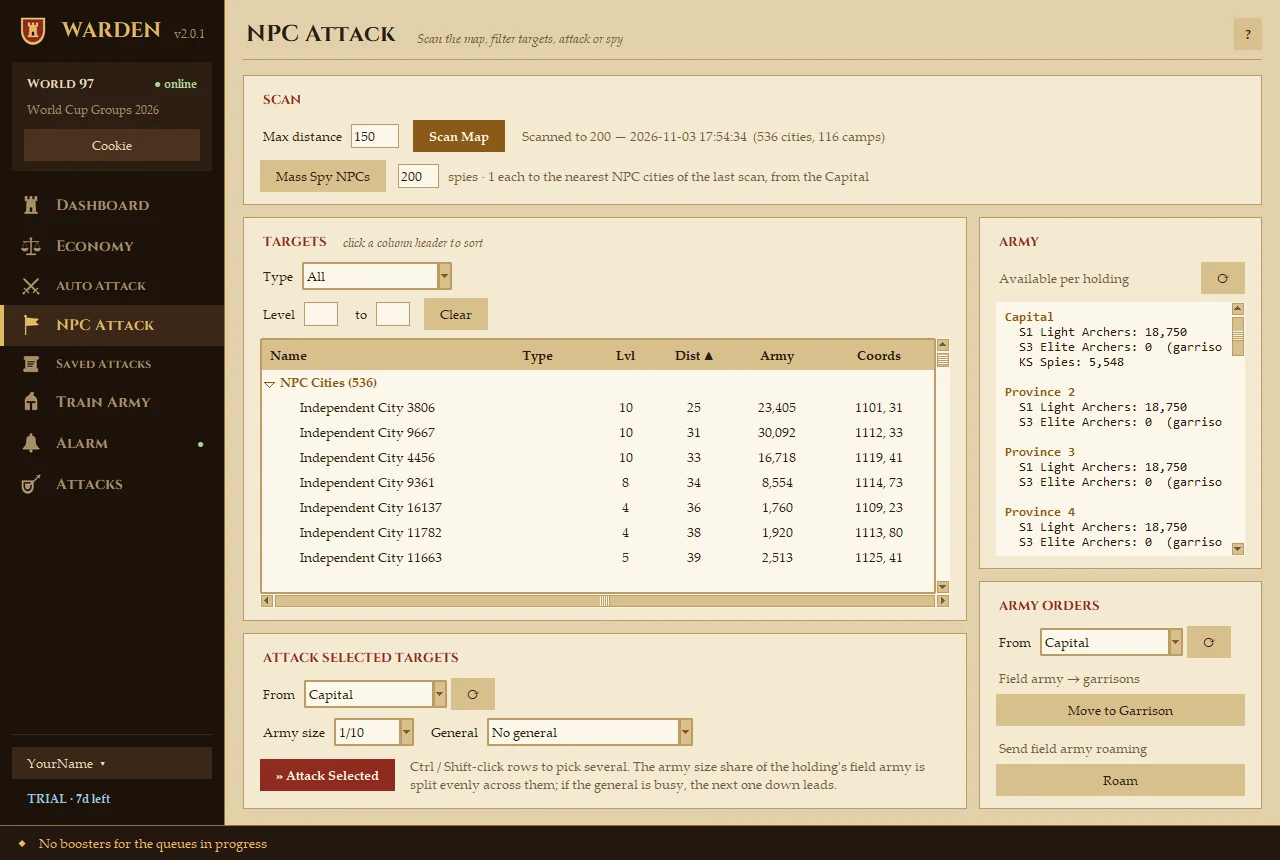
- Scan Map
- Loads every NPC city and barbarian camp up to Max distance. The last scan is kept, so you don't need to rescan every time.
- Mass Spy NPCs
- Sends one spy each to the nearest NPC cities of the last scan, from the Capital.
- Targets
- Filter by Type and Level. Click a column header to sort by name, level, distance, army or coordinates.
- Attack Selected
- Select one target or several (Ctrl- / Shift-click), pick From, Army size and General, then press it. The army share is split evenly across the targets.
- Army
- The army available in every holding. ⟳ reloads it.
- Army orders
- Move to Garrison puts the field army of a holding into its garrison. Roam sends it roaming.

Saved Attacks
Keep a list of targets, each with its own army, and send one or many at once.
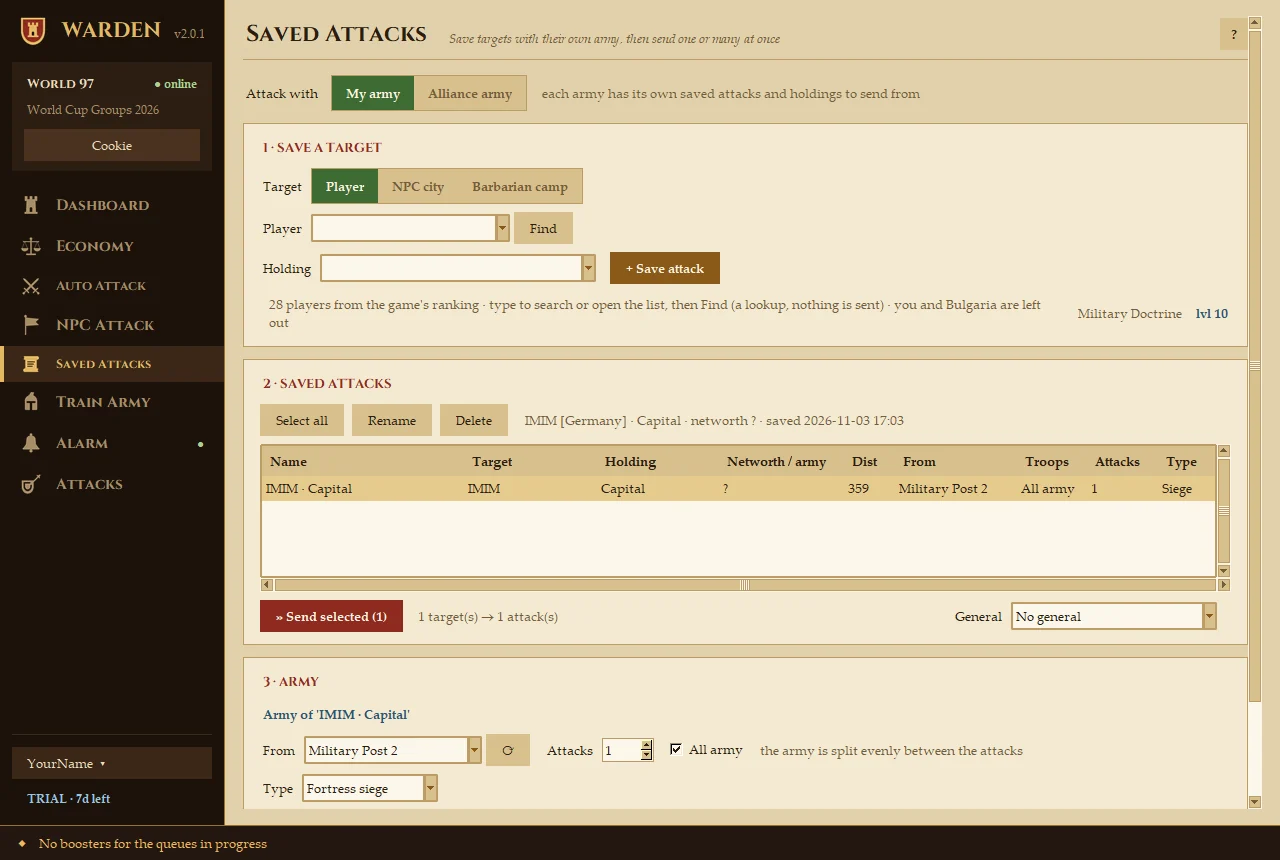
- Attack with
- My army or Alliance army. Each has its own saved attacks and holdings to send from. The alliance army attacks other alliances' holdings.
- 1 · Save a target
- Choose Player, NPC city or Barbarian camp. For a player, type or pick a name and press Find (just a lookup, nothing is sent), choose the Holding, then + Save attack. You and your alliance are left out of the list.
- 2 · Saved attacks
- Your list, with target, distance, army and type. Tick some (or Select all) and press Send selected. Rename and Delete tidy the list.
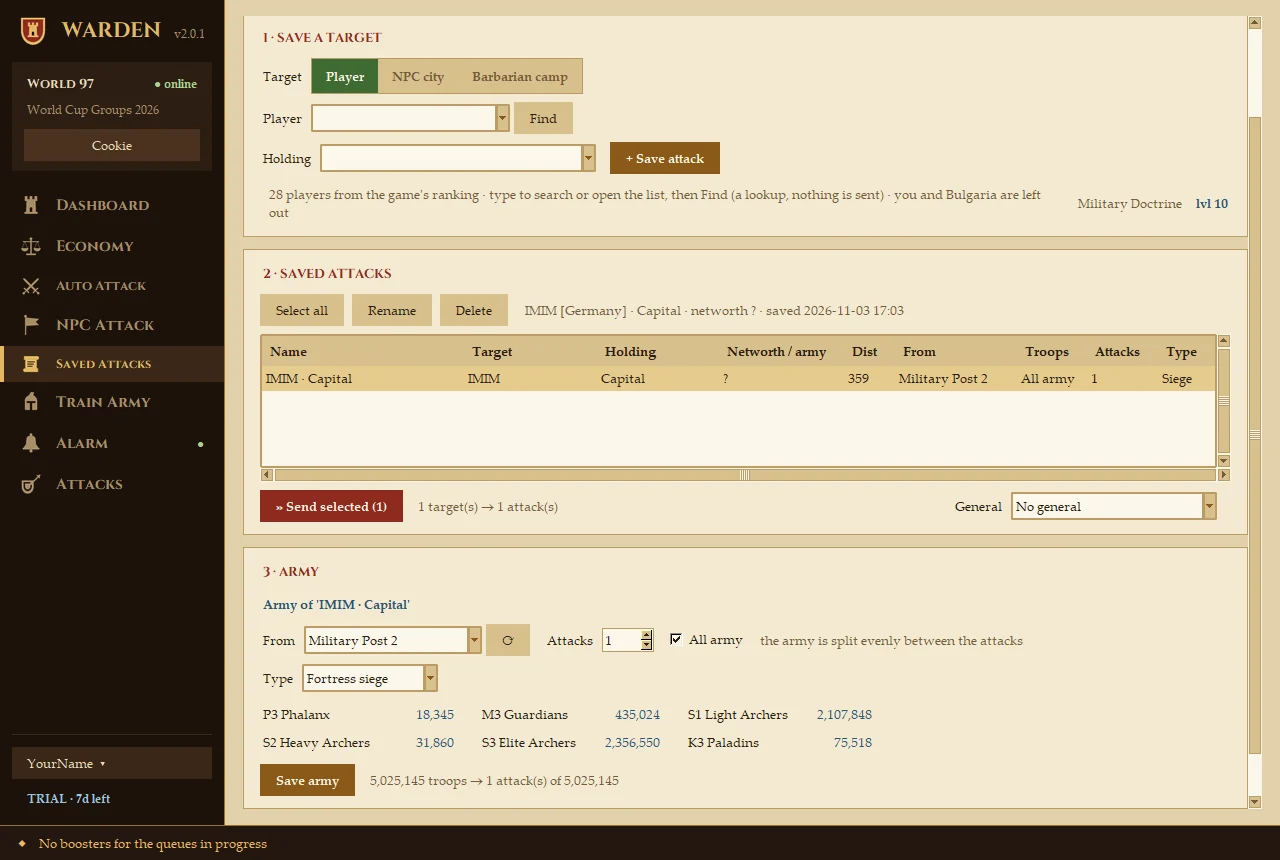
- 3 · Army
- For the selected attack: the holding it leaves From, how many Attacks to split it into, All army or exact unit counts, and the attack Type. Press Save army.

Train Army
Train or upgrade as much as possible in many holdings with one press.
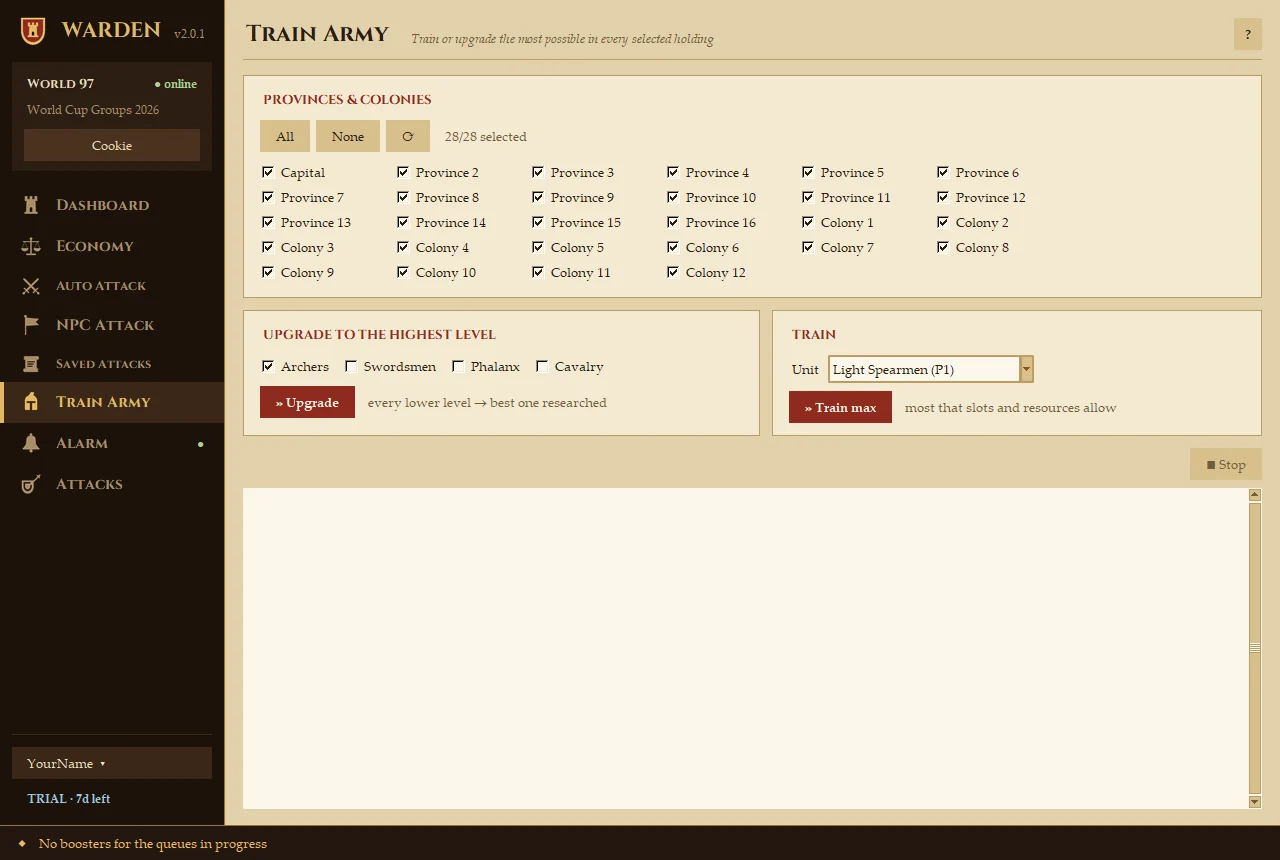
- Provinces & colonies
- Tick the holdings to work on. Use All / None, and ⟳ reloads them.
- Upgrade
- Turns every lower level of the ticked unit types (archers, swordsmen, phalanx, cavalry) into the best one you've researched.
- Train max
- Trains as many of the chosen unit as free slots and resources allow.
- Log · Stop
- The log shows what was ordered. Stop ends a run early.

Attack Alarm
Your phone rings or buzzes when you or your alliance get attacked. It works while Warden is open and logged in.
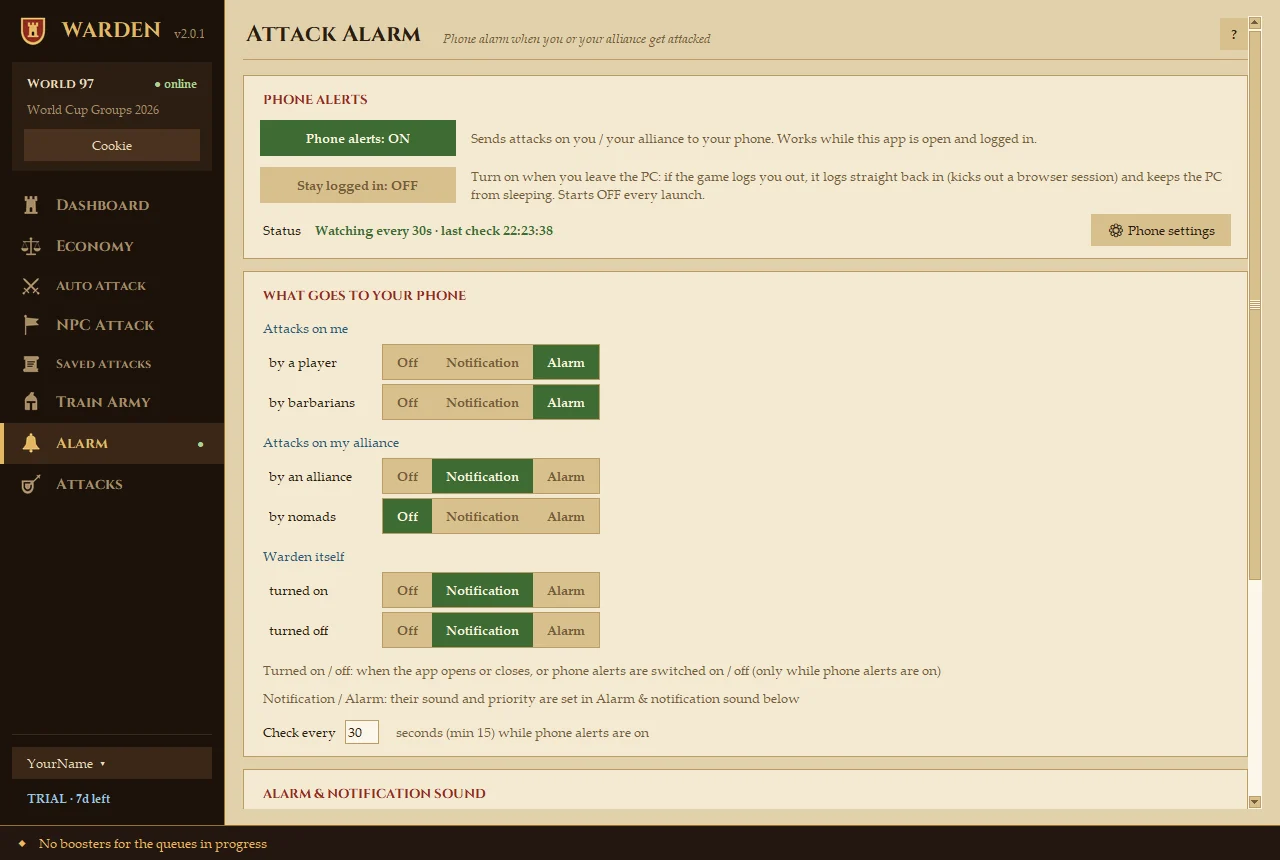
- Phone alerts
- Switches watching on. Warden checks for attacks every Check every seconds (at least 15).
- Stay logged in
- For when you leave the PC. If the game logs you out, Warden logs straight back in (with the cookie, else your saved password, which logs out a browser session) and keeps the PC from sleeping. The screen can still turn off. It starts OFF every launch.
- What goes to your phone
- For each kind of attack (on you by a player or by barbarians, on your alliance by an alliance or by nomads), choose Off, Notification or Alarm. You can also be told when Warden itself turns on or off.
- Alarm & notification sound
- The priority and sound of each kind of push, with a Test button.
- Phone settings
- Pick the app that receives the alerts and enter its key (see below).
Set up your phone
Open ⚙ Phone settings and choose one:
- ntfy · Android · free
-
1. Install ntfy from Google Play.
2. Scan the QR code Warden shows with the phone camera, or in ntfy tap + and type the topic (server ntfy.sh).
3. Make it a real alarm: in ntfy, Settings → turn on Keep alerting for highest priority, so it rings until you swipe it.
4. To ring in Do Not Disturb: Android Settings → Apps → ntfy → Notifications → Max priority → allow Override Do Not Disturb.
5. Press Test alarm.
Anyone who knows the topic can read your alerts, so keep it random (New random topic). - Bark · iPhone · free
-
1. Install Bark from the App Store and allow notifications.
2. iPhone Settings → Notifications → Bark → turn on Critical Alerts, so it rings even in silent mode and Do Not Disturb.
3. Copy the URL shown on Bark's main screen (https://api.day.app/…) and paste it into Warden. The key alone works too.
4. Press Test alarm. It rings for 30 s and is re-sent every 30 s until you tap it. - Pushover · paid
- Android and iPhone. 30-day free trial, then a one-time $5 per platform in the Pushover app. Enter your User key (pushover.net, after logging in) and an App token (pushover.net/apps/build). Emergency priority repeats every 30 s for up to an hour until you tap it.

Attacks & Missions
Armies on the move: attacks on you and your alliance, and your own missions.
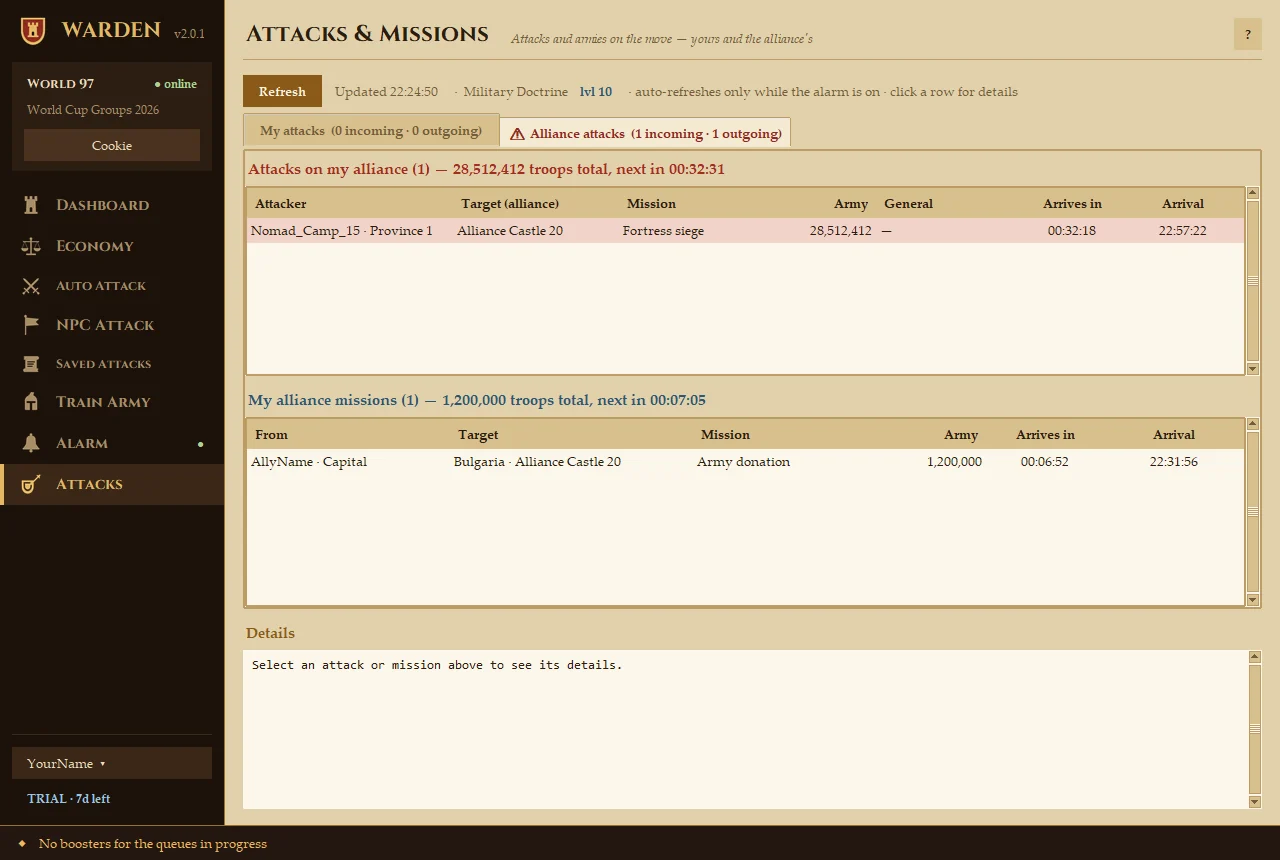
- My attacks / Alliance attacks
- Two tabs. Each shows attacks coming in (red) and missions going out, with troop totals and the time to the next arrival.
- Arrives in · Arrival
- Live countdown to each arrival, and the clock time it lands.
- Details
- Click a row to see its full details below.
- Refresh
- Loads the list. It refreshes by itself while the alarm is on.
Licence & subscription
Everything happens from the licence badge at the bottom-left of the window.
- Subscribe
- Badge → Subscribe monthly · €5.99… or Subscribe yearly · €49.99 (save 30%)…. You pay on Stripe's secure page, and Warden turns Pro by itself a few seconds later. Subscribing during the trial keeps your remaining free days: the first charge is when they run out.
- Your licence key
- It's e-mailed to you after paying. You only need it for a second PC: badge → Enter licence key…. Copy licence key copies it from the PC that's already Pro.
- Two PCs
- One subscription works on up to 2 PCs. Moving to a new PC? Badge → Deactivate this PC… on the old one first.
- Manage or cancel
- Badge → Manage subscription… (or the Account page with your key) to change plan, update your card, get invoices or cancel. Warden keeps working until the end of the period you paid for.
- Updates
- When a new version is out, the badge says · update. Badge → Update to Warden …, or Check for updates.
Troubleshooting
- "The last cookie has expired"
- Your browser session ended. Copy a fresh PHPSESSID (Connect, steps 1–5), or log in with your password.
- "Windows protected your PC"
- Click More info → Run anyway. Windows shows it for new apps.
- Logged out at night
- Turn on Stay logged in on the Alarm page and save your password in the account menu, so Warden can log back in.
- The phone doesn't ring
- Press Test alarm in Phone settings. On Android check Override Do Not Disturb; on iPhone check Critical Alerts for Bark.
- Nothing happens
- Automations start OFF every launch. Check the switches on the Dashboard and the status bar at the bottom.
- Lost licence key
- Get it e-mailed again on the Account page.
- Still stuck?
- E-mail .