Imperia Online automation · Windows 10 & 11

Your Imperia Online empire, on autopilot.

Warden plays the repetitive part of Imperia Online for you: dungeon runs, NPC and barbarian raids, army training, festivals and taxes. It also rings your phone the moment someone attacks.

7 days free · every feature · no card needed
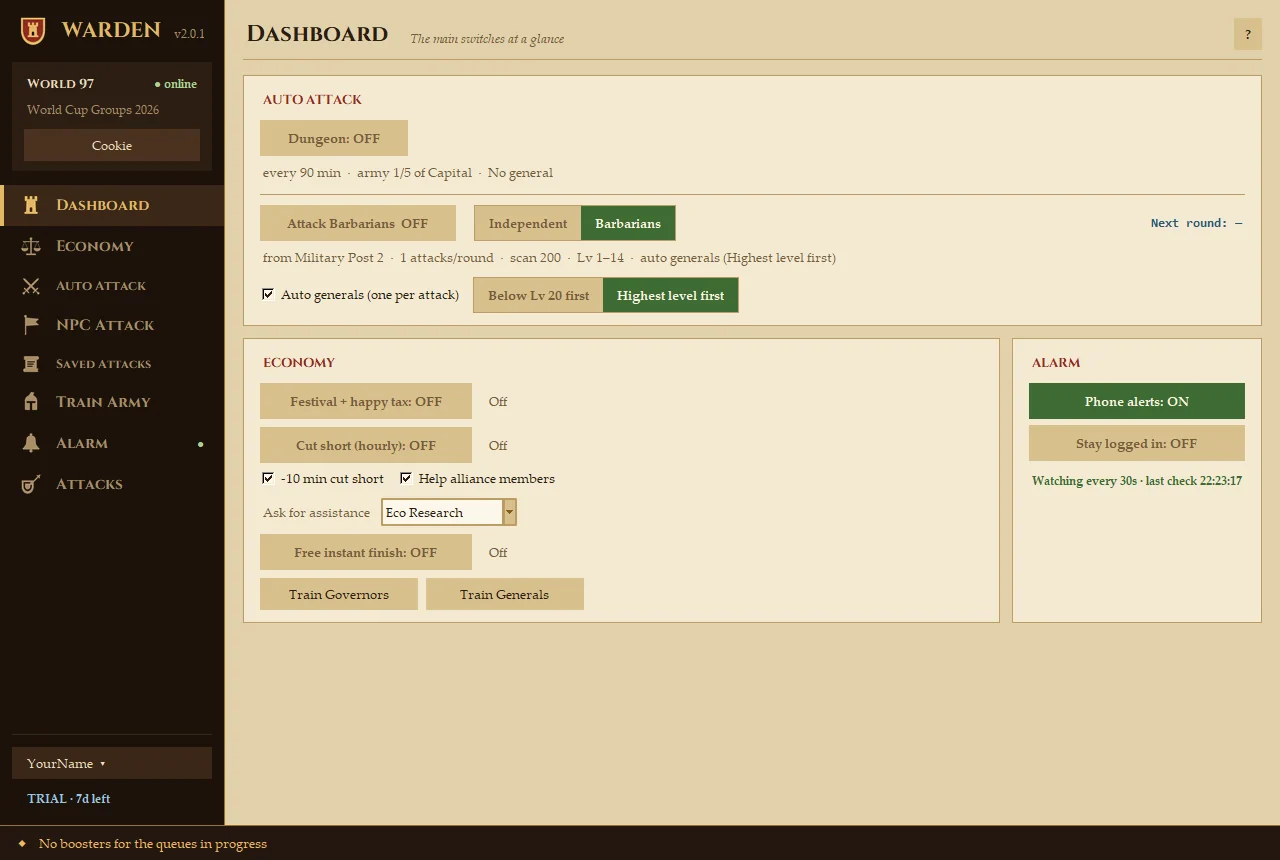
Warden's Dashboard page with the Auto Attack, Economy and Alarm switches
At a glance

Everything that eats your evenings, handled

Turn on only what you want. Every automation starts off each time Warden opens and runs at a careful, human pace.

Feature tour

A look inside Warden

Real screenshots of the app. Click any of them to see it full size. The Guide explains every button.

Dashboard

The main switches of Warden in one place, so you can see at a glance what's running.

  • Turn the dungeon, NPC raids, festivals, cut-short and the alarm on or off from here.
  • The line under each switch sums up its settings, such as every 90 min · army 1/5 of Capital.
  • Nothing runs until you switch it on, every time Warden opens.
Dashboard in the guide
Dashboard page

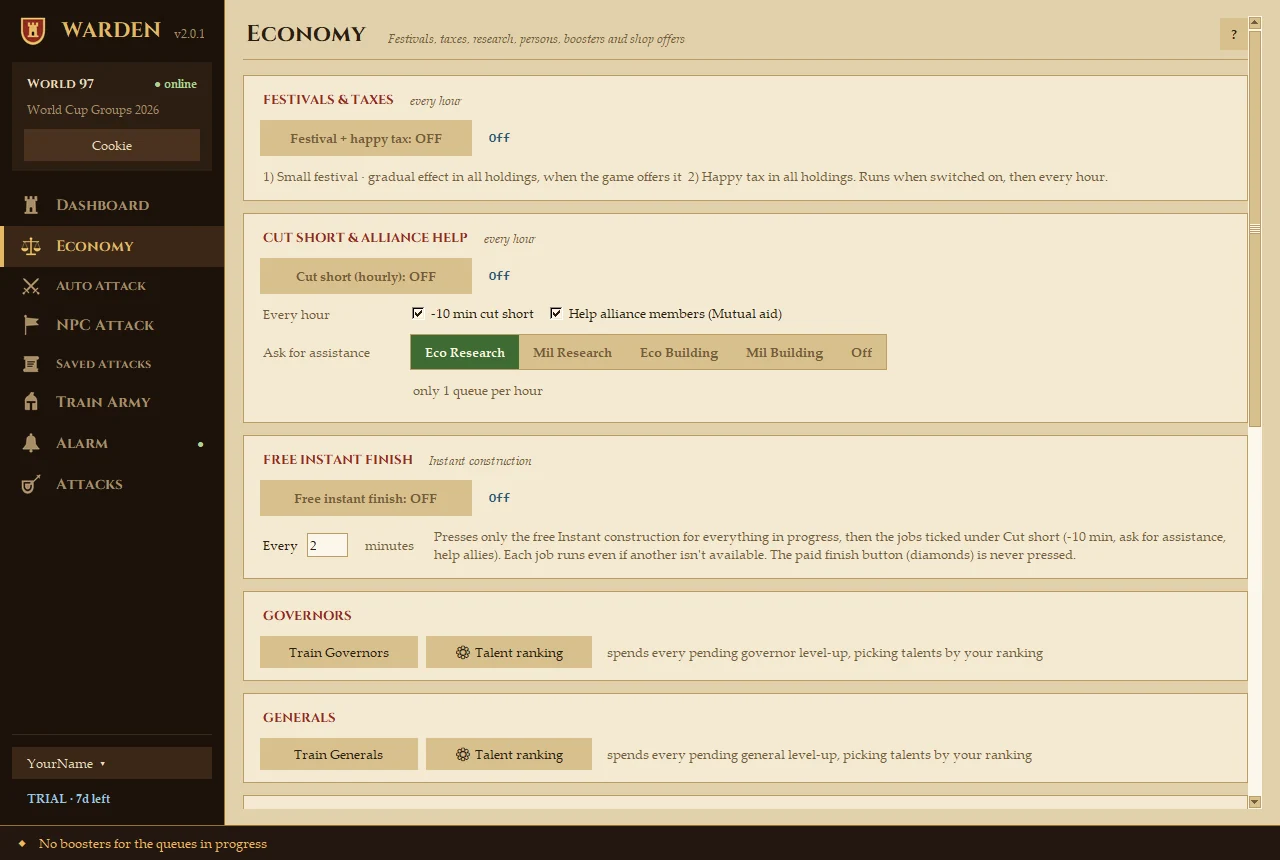
Economy

Everything that grows your realm, on a timer.

  • Festival + happy tax: a small festival and the happy tax in all holdings, every hour.
  • Cut short: uses the free −10 min, asks your alliance for help and helps every ally who asks.
  • Free instant finish: presses the free Instant construction every few minutes.
  • Governors & generals: spends every level-up, picking talents by your own ranking.
  • Boosters, shop discounts in every world, and a special-resource scan. None of it spends diamonds unless the button says so.
Economy in the guide
Economy page

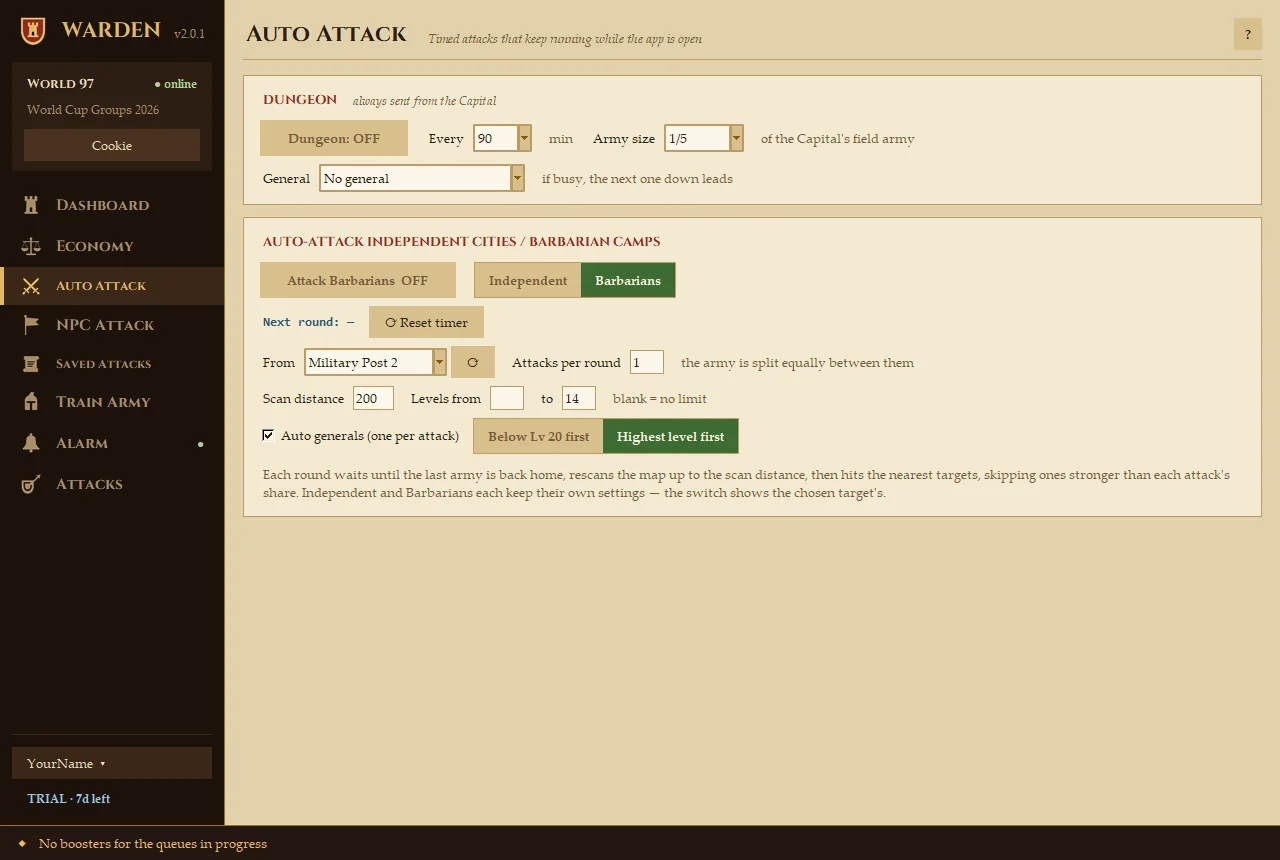
Auto Attack

Attacks that repeat by themselves while Warden is open.

  • Dungeon: sends the share of the Capital's army you choose, every 90 minutes or however often you set.
  • NPC raids: waits for the army to come home, rescans the map, then attacks the nearest independent cities or barbarian camps in your level range, skipping ones that are too strong.
  • Split the army over several attacks per round and let Warden put a general at the head of each.
Auto Attack in the guide
Auto Attack page

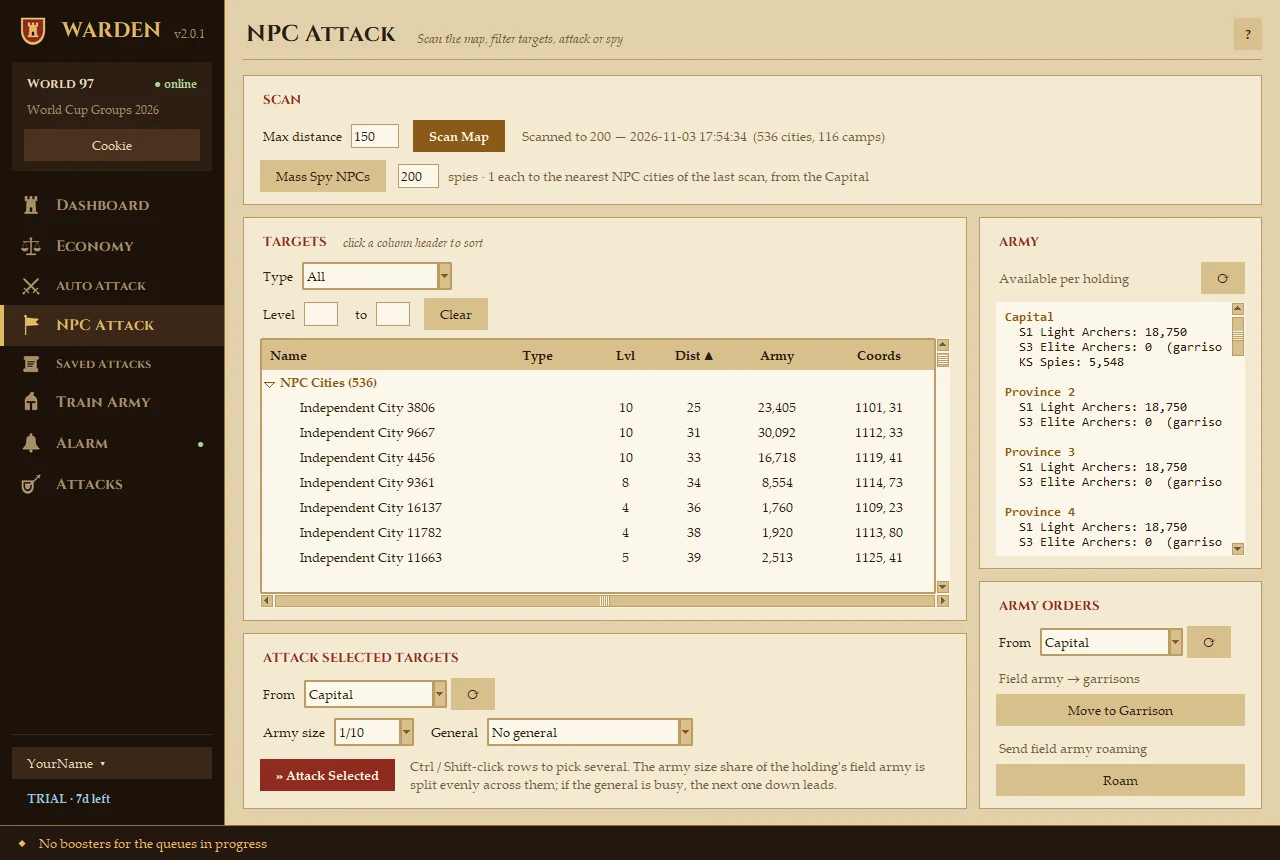
NPC Attack

Find NPC targets on the map and attack or spy on them yourself.

  • Scan Map loads every NPC city and barbarian camp within the distance you choose.
  • Filter by type and level, and sort by distance, army or level.
  • Select several targets and the army is split evenly between them. Mass Spy sends one spy to each nearby city.
  • See the army in every holding, and move it into the garrison or send it roaming.
NPC Attack in the guide
NPC Attack page

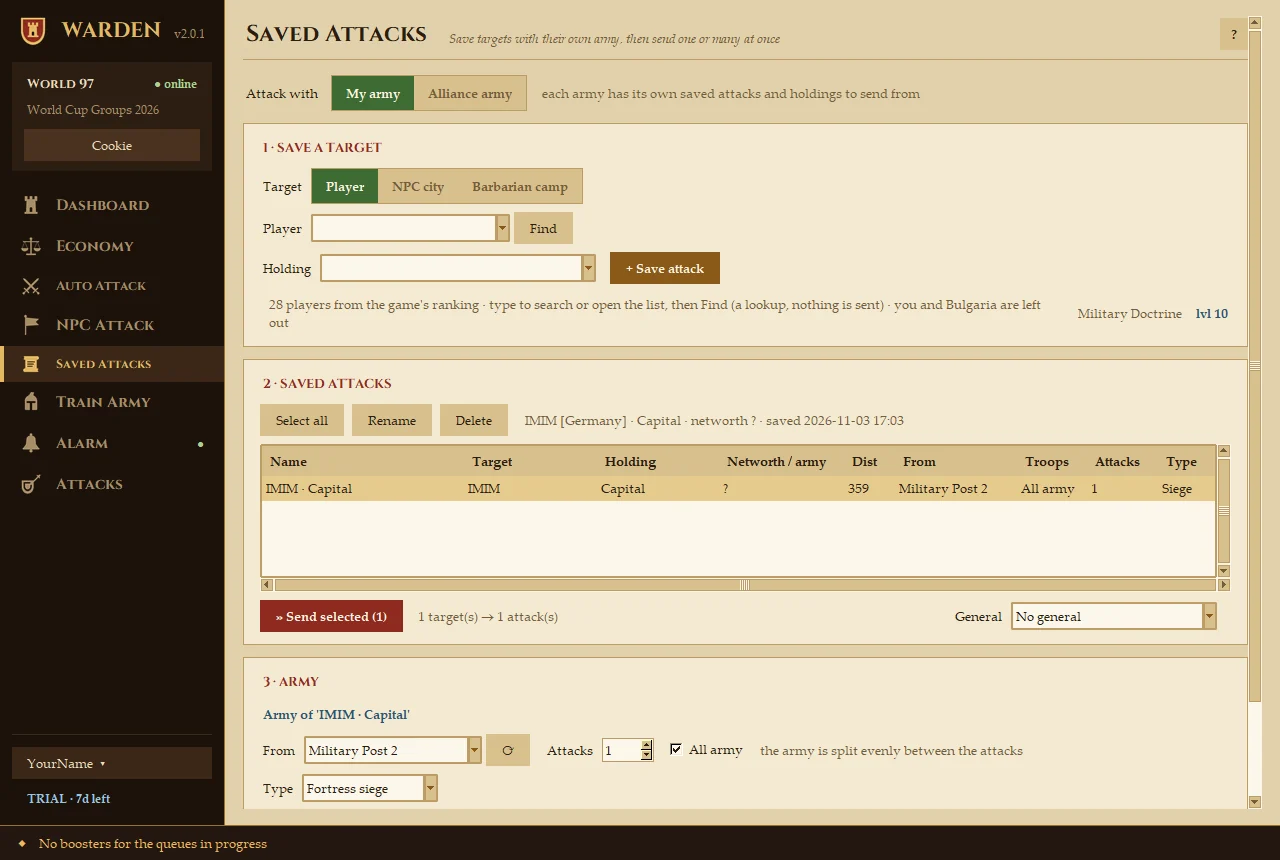
Saved Attacks

Keep a list of targets, each with its own army, and send one or many at once.

  • Save a player's holding, an NPC city or a barbarian camp as a target.
  • Each saved attack remembers which holding it sends from, how much army and the attack type.
  • Works with your own army or the alliance army.
Saved Attacks in the guide
Saved Attacks page

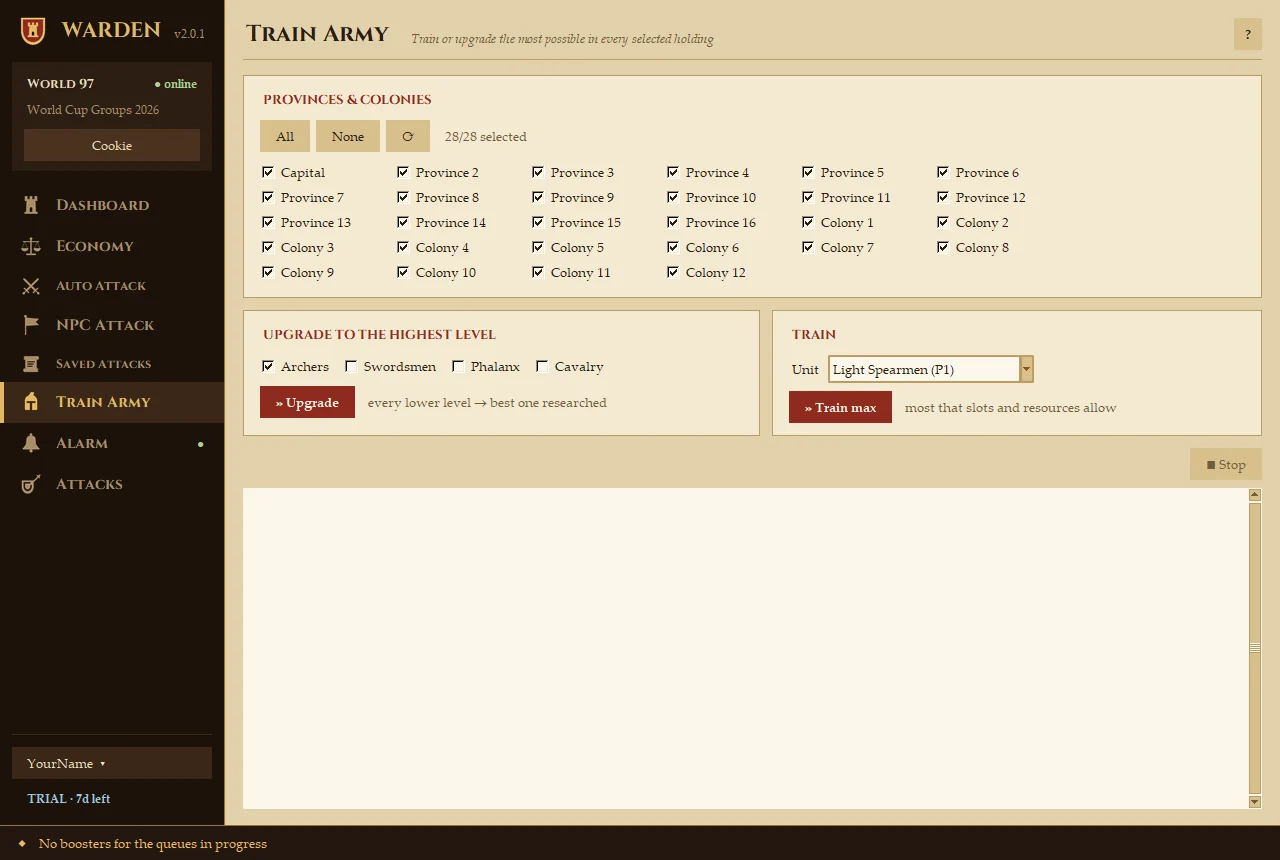
Train Army

Train or upgrade as much as possible in many holdings with one press.

  • Tick the provinces and colonies to work on.
  • Upgrade turns every lower level of a unit type into the best one you've researched.
  • Train max fills every free slot that your resources allow.
Train Army in the guide
Train Army page

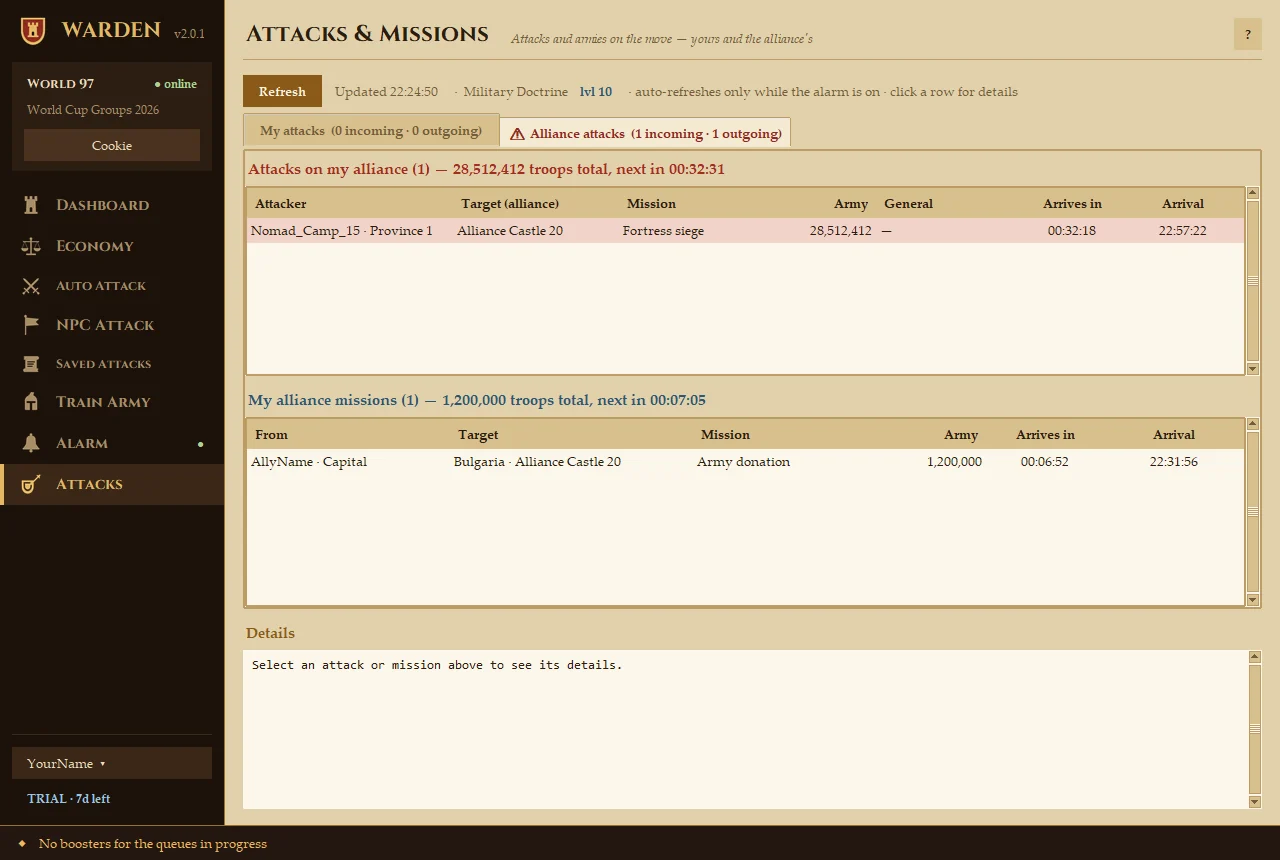
Attacks & Missions

Every army on the move: attacks on you and your alliance, and your own missions.

  • Live countdown to each arrival, with troop totals.
  • Click a row for the details. The sidebar shows how many attacks are coming at you.
  • Refreshes by itself while the alarm is on.
Attacks in the guide
Attacks and Missions page
Attack alarm

Sleep. Warden keeps watch.

When you or your alliance get attacked, your phone rings until you react, even at night and even on silent. For each kind of attacker you choose whether it's ignored, a notification or a full alarm.

  • Stay logged in: if the game logs you out, Warden logs straight back in and keeps the PC awake.
  • It also tells your phone when Warden itself turns on or off, so you know it's still watching.

ntfy

Android · free

Bark

iPhone · free

Pushover

Android & iPhone · paid

Set up the alarm

Getting started

Running in three minutes

Warden is a Windows app. It runs on your PC and talks to the game just like your browser does.

Install

Download and run the installer. No admin rights needed. Your 7-day trial starts on first launch.

Connect

Copy your game's session cookie from the browser and paste it into Warden, or log in with your password. Step-by-step pictures.

Switch on

Turn on the automations and the phone alarm you want, then walk away.

Your account

Is it safe?

Your login stays on your PC

Your password is stored encrypted in Windows Credential Manager. We never see it. Our server only gets your licence key and an anonymous ID of your PC.

Careful by design

Every automation starts off, runs at a human pace and never spends diamonds unless the button clearly says so.

Your choice, your risk

Automation tools may be against the game's rules. Warden plays carefully, but we can't promise the game won't act against accounts that use it.

Pricing

Try it free. Keep it cheap.

One plan with everything. Cancel anytime. It keeps working until the end of the period you paid for.

Free trial

€0
for 7 days
  • Every feature
  • No card, no account
  • Starts on first launch
Download

Warden Pro

€5.99 /month
billed monthly
  • Every feature, all your worlds
  • Use on up to 2 PCs
  • Updates included
  • Cancel anytime
Start free, upgrade in the app

Prices include VAT. You subscribe from inside Warden (licence badge, bottom-left) with secure payment by Stripe. Buying during the trial keeps your remaining free days: you're only charged when they run out, and Warden turns Pro by itself. Your licence key is e-mailed to you too, for a second PC.

FAQ

Questions

Is the free trial really free?

Yes. 7 days, every feature, no card and no sign-up. It starts the first time you open Warden on a PC.

How do I subscribe?

Inside Warden: click the licence badge in the bottom-left corner → Subscribe, pick monthly or yearly, and pay on the secure Stripe page. Warden turns Pro by itself a few seconds later. If you subscribe during the free trial, you keep the days you have left: the first charge only happens when they run out.

What is the "cookie" and why does Warden ask for it?

It's the ID of your game session in the browser (called PHPSESSID). Pasting it into Warden lets the app and your browser share one session, so you can keep playing in the browser while Warden works. The guide shows where to find it. You can also log in with your username and password instead.

Is my game password safe?

Your login stays on your PC, encrypted in Windows Credential Manager. Warden talks only to the game servers and to our licence server, which receives just your licence key and an anonymous ID of your PC.

Can my account get banned?

Automation tools may be against the game's rules. Warden paces its requests like a careful player, but we can't promise the game won't act against accounts that use it. You use Warden at your own risk.

Does my PC need to stay on?

Yes. Warden runs on your PC. With "Stay logged in" on, it keeps Windows from sleeping while it watches (the screen can still turn off).

Which languages does Warden speak?

English, Bulgarian, German, Spanish, French and Portuguese. Change it in the account menu at the bottom-left → Language.

How many PCs can I use?

Up to 2 per subscription. Moving to a new PC? Use Licence → Deactivate this PC on the old one.

How do I cancel?

Anytime: in Warden, click the licence badge → Manage subscription, or use the Account page with your licence key. Warden keeps working until the end of the period you paid for.

Is there a Mac version?

Not yet. Warden is Windows only for now.

I lost my licence key.

It's in the e-mail you got after subscribing. Or get it sent again on the Account page.

Download

Start your free trial

Windows 10 & 11 (64-bit). The trial starts when you first open Warden.

Download Warden for Windows

Windows may say "Windows protected your PC" for new apps. Click More info → Run anyway. Then follow Connect to the game.